An IDE is a program where a developer writes code, runs a project, hunts for bugs, and works with files. It brings the main development tools together in a single window, so you don't have to open a separate editor, terminal, debugger, and version control system.
You'll run into the abbreviation IDE in guides for Python, JavaScript, Java, C#, Android development, and server work. In an IDE you can build a website, a Telegram bot, a mobile app, or a desktop program — and then check right away how it runs.
Let's break down what an IDE is in plain English, what parts it's made of, and how to pick your first development environment.
What is an IDE
IDE stands for Integrated Development Environment.
The easiest way to picture an IDE is as a programmer's workbench. All the tools you need are already laid out on it:
- a code editor;
- syntax highlighting;
- hints and autocomplete;
- running the program;
- finding and fixing bugs;
- a built-in terminal;
- Git integration;
- managing the project's files.
Instead of writing code in one app, running it in another, and tracking down bugs in a third, the developer does everything in a single environment.
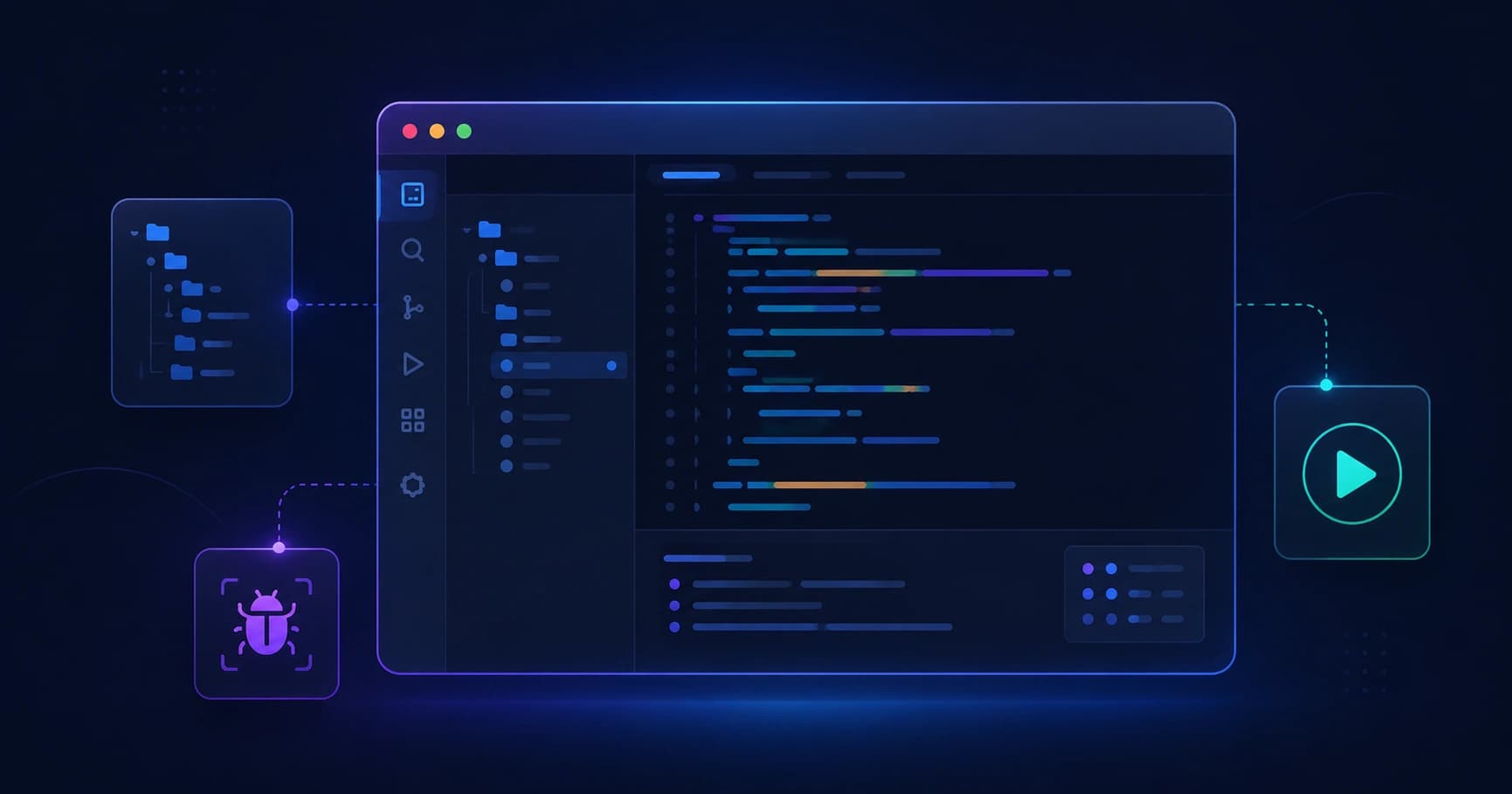
When you're building a website, for example, an IDE might show the file structure on the left, the page's code in the center, errors along the bottom, and a terminal with the run command in its own panel.
An IDE isn't a programming language, and it isn't a finished website. It's a tool for working with code. You can use it to write programs in different languages, as long as the environment supports them.
How an IDE differs from a text editor
A plain text editor can create and change text files. You can write code in one, but it does almost nothing to help you with development.
An IDE understands the structure of your project and the quirks of the language you've chosen. It can suggest a function's name, find every place a variable is used, flag an error before you even run the program, and pause execution on a specific line.
| Tool | Best suited for | What it can do |
|---|---|---|
| Text editor | Notes, simple files | Typing and saving text |
| Code editor | Small projects and editing config files | Syntax highlighting, extensions, code search |
| IDE | Full-scale development | Code, running, debugging, tests, Git, building the project |
The line between a code editor and an IDE is sometimes blurry. A lightweight editor with the right extensions can gain a terminal, a debugger, and support for a specific language — and come close to an IDE in what it can do.
What an IDE is made of
Different development environments look different, but the core components are usually the same.
A code editor
The main part of an IDE is the window where you write and edit code. It highlights keywords, strings, functions, and comments in different colors so it's easier to find your way around a file.
Modern IDEs also support:
- automatic indentation;
- collapsing blocks of code;
- quick search across a file and the whole project;
- multiple tabs;
- comparing changes;
- formatting code according to the language's rules.
Hints and autocomplete
When you start typing the name of a function, method, or variable, the IDE can show you the available options. This is called autocomplete.
After you type an object's name, for example, the environment suggests its properties and methods. This cuts down on typos and helps you learn an unfamiliar library faster.
An IDE can also show you:
- what a function does;
- the type of its arguments;
- its return value;
- possible errors;
- a link to the documentation.
Code analysis
An IDE constantly checks your code in the background. It can underline a syntax error, an unused variable, a wrong import, or a suspicious condition before you ever run the program.
This kind of analysis doesn't replace testing, but it helps you spot simple problems quickly.
Running and building a project
For a program to run, the code has to be executed, built, or handed off to an interpreter — depending on the language.
An IDE lets you save run commands in a configuration. With a single button, for example, you can:
- install dependencies;
- start the development server;
- open the app in a browser;
- pass parameters to the program;
- save the output to the console.
For large projects, an IDE can handle the build, tests, linters, and other tasks automatically.
The debugger
A debugger helps you figure out why a program isn't behaving the way you expected.
The developer sets a breakpoint on a particular line. When the program reaches it, execution pauses. At that moment you can inspect the values of variables, step through the code one line at a time, and figure out where the bug crept in.
A simplified version looks like this:
Run the program
        ↓
The code reaches a breakpoint
        ↓
The IDE pauses execution
        ↓
The developer inspects variables and the call stack
        ↓
Moves to the next line or fixes the bug
The built-in terminal
A terminal inside the IDE lets you run commands without switching between windows. You use it to install packages, start a server, work with Git, connect to a remote server over SSH, and run scripts.
For a Node.js project, for instance, you'll often run this in the terminal:
npm install
npm run dev
And for a Python project:
python -m venv .venv
pip install -r requirements.txt
python main.py
The terminal is part of the interface, but the commands you type into it are still ordinary operating-system commands. You can read more about working this way in "What Is a CLI and the Command Line".
Git integration
Git helps you keep a history of changes in a project and work as a team. In an IDE, you can usually see which files have changed, compare versions, create a commit, switch branches, and push your code to a remote repository.
That's convenient, but it's important to understand the basics of Git: an IDE simplifies the interface — it doesn't replace the version control system itself.
How an IDE works under the hood
An IDE doesn't just display text. It analyzes the files in your project and talks to the programming language's tools.
When you open a project, the environment usually does several things:
- finds the configuration files and dependencies;
- identifies the language and the version of the interpreter or compiler;
- indexes the project — builds an internal map of classes, functions, files, and references;
- starts a code analyzer or language server;
- prepares the commands for running, testing, and debugging.
Thanks to that indexing, an IDE can quickly jump to a function's definition, show every place it's called, and safely rename variables across the entire project at once.
Different languages rely on different tools:
- Python is usually run through an interpreter;
- JavaScript and TypeScript through Node.js and related tools;
- Java and Kotlin are compiled and built through their own build systems;
- C and C++ use compilers and debuggers;
- mobile apps are built through platform SDKs.
An IDE ties these components together into one coherent interface, but it doesn't replace them entirely.
If an IDE takes a while to open a project the first time, that's often normal: the environment is indexing files, looking for dependencies, and building an internal map of the code. On large projects, this can take a noticeable amount of time.
IDE, language-specific IDE, or code editor: which to choose
The right choice depends on what you're learning and how big a project you plan to work on.
A general-purpose editor with extensions
A good fit for getting started with programming, building web layouts, JavaScript, Python, editing config files, and small projects. These programs usually start up faster and let you add language support through plugins.
A full-featured IDE for a specific language
A good fit for large projects and tasks where deep code analysis, automatic refactoring, testing, and integration with the language's ecosystem matter.
For Java, Kotlin, C#, Android development, and complex Python projects, for example, a specialized IDE often saves a lot of time.
A platform-specific IDE
Sometimes a development environment is tied to a specific platform. Apps for the iPhone and iPad, for example, are built with Apple's tools, while Android apps use tools tied to the Android SDK.
| Task | What usually matters in an IDE |
|---|---|
| Website or frontend | Support for HTML, CSS, JavaScript/TypeScript, a terminal, Git, extensions |
| Python scripts and bots | An interpreter, virtual environments, a debugger, package management |
| Backend and APIs | Working with Docker, databases, tests, Git, and remote servers |
| Android app | The Android SDK, an emulator, build and profiling tools |
| iOS app | Apple's tools, a simulator, app signing and builds |
| C/C++ | A compiler, a debugger, CMake or another build system |
Popular IDEs and tools
There's no single IDE that's equally convenient for absolutely every task. Below are some common options you'll often come across while learning and working.
Visual Studio Code
Visual Studio Code is a lightweight code editor that, with extensions, can turn into a comfortable development environment for the web, Python, Go, PHP, Docker, and plenty of other tasks.
One thing to keep in mind: out of the box, VS Code is usually classed as a code editor rather than a full-fledged IDE. But once you add extensions, a debugger, a terminal, and project settings, the difference becomes small for many use cases.
IntelliJ IDEA and other JetBrains IDEs
IntelliJ IDEA is used for Java and Kotlin. JetBrains also makes separate products for Python, JavaScript/TypeScript, PHP, C/C++, and other languages.
Their strong suit is a deep understanding of project structure, code navigation, refactoring, and working with large codebases.
Visual Studio
Visual Studio is a full-featured IDE, especially common in C#, .NET, and C++ development. Don't confuse it with Visual Studio Code: they're different products with different sets of features.
Android Studio
Android Studio is built for developing Android apps. It comes with tools for working with the Android SDK, an emulator, screen layouts, and building and debugging an app on a device.
Xcode
Xcode is used for apps on iOS, iPadOS, macOS, watchOS, and tvOS. It provides Apple's tools for compiling, testing, and running apps in a simulator or on a device.
The core features of an IDE, using a project as an example
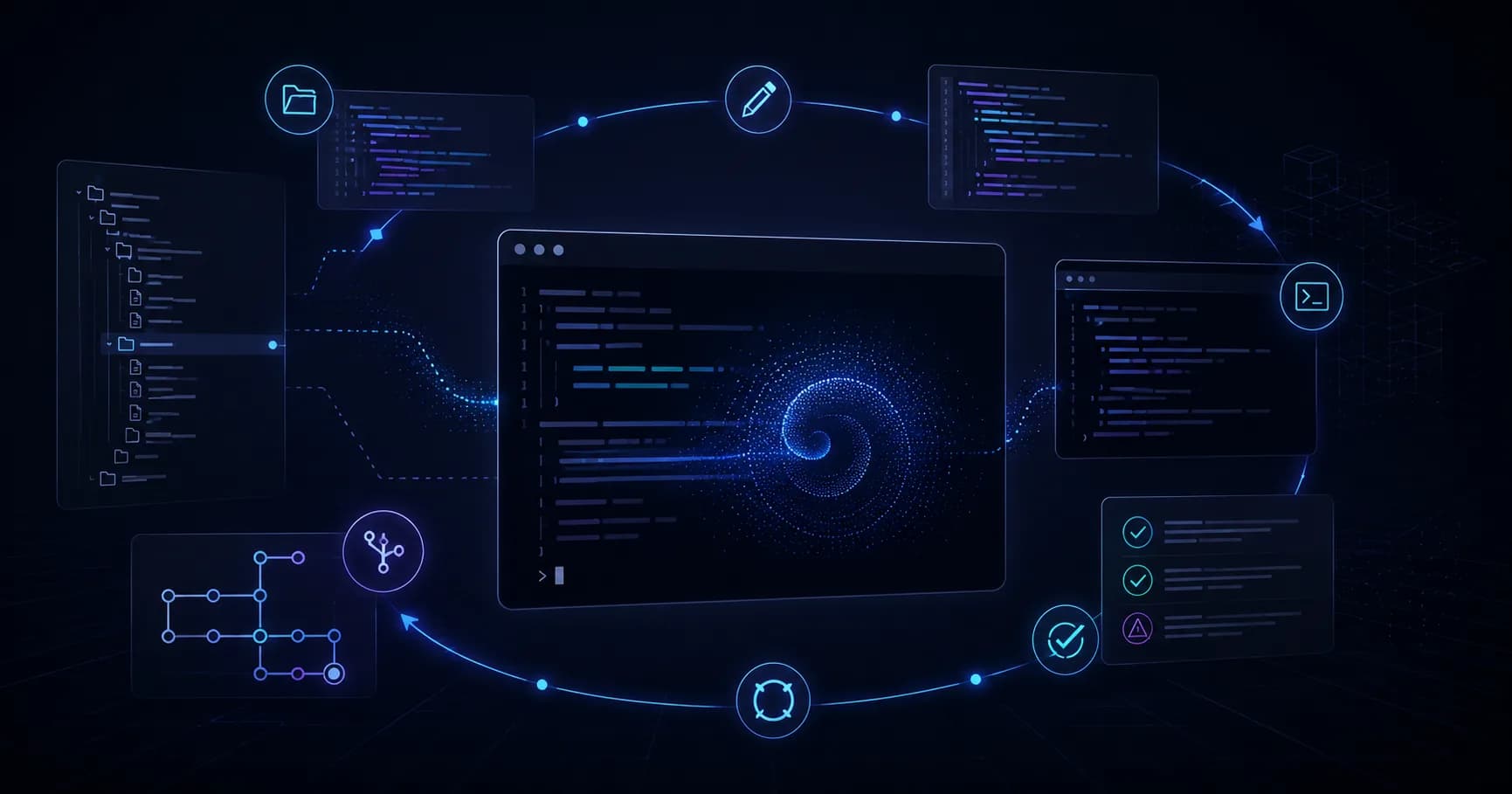
Say you're building a small backend service. In an IDE, you can carry out almost the entire workflow:
Create the project
        ↓
Open and edit files
        ↓
Install dependencies through the terminal
        ↓
Start the server in development mode
        ↓
Set a breakpoint and check the logic
        ↓
Run the tests
        ↓
Save the changes to Git
You could do all of this without an IDE too — using a separate editor, a terminal, a browser, and other apps. But an IDE cuts down on repetitive steps and gathers the tools in one place.
What refactoring is and why it matters
Refactoring is changing the internal structure of code without changing how it behaves for the user.
You might rename a function, pull repeated code out into its own module, or split a large class into several pieces. A good IDE understands the connections between files and helps you do this more safely.
Instead of searching through the whole project by hand, the environment can:
- find every call to a function;
- rename a variable everywhere it needs to change;
- update imports;
- show you where a change might break the code;
- suggest an automatic fix.
This is especially useful when a project is made up of dozens or hundreds of files.
Automatic fixes and refactorings need to be reviewed before you save them. An IDE understands the structure of your code well, but it doesn't always know the project's business logic, and it may suggest a change that's technically correct yet wrong for your particular task.
How to choose your first IDE
As a beginner, you don't have to start with the most complex environment. What matters more is that the IDE or editor is comfortable for the language you've chosen and doesn't get in the way of learning the basics.
Let four questions guide you.
Which language you're learning
Python, JavaScript, Java, C#, and mobile development all call for different tools. It's best to start with the recommendations from an official course, the language's documentation, or the framework's docs.
What you're planning to build
For simple scripts and small web pages, a lightweight editor may be enough. For an Android app, a large backend project, or a Java program, a full-featured IDE with ready-made tools is more convenient.
What kind of computer you have
Some IDEs demand a fair amount of RAM and disk space, especially when a project includes emulators, SDKs, and large dependencies. On a low-powered laptop, a lightweight editor may run more comfortably.
Whether you'll be working with a team
Check how the environment handles Git, tests, formatting, and shared project settings. This makes collaborative development easier and reduces the number of accidental differences in the code.
How to get started with an IDE
The basic sequence of steps is nearly the same for most languages.
1. Install the IDE and the language's tools
The IDE by itself often doesn't include everything you need. You may have to separately install Python, Node.js, the JDK, a C/C++ compiler, or a mobile SDK.
2. Open the project folder
An IDE usually works not with a single file but with an entire folder: that's where the source code, dependencies, settings, and documentation live.
3. Set up the run environment
Choose the interpreter, the language version, or the run command. For Python that's often a virtual environment, and for JavaScript it's the commands in package.json.
4. Run a simple example
First, make sure the IDE recognizes the language and can run the project. This helps you catch problems with paths, dependencies, or settings right away.
5. Connect Git
Create a repository or connect an existing one. Make small, clear commits — that way it's easier to return to a working version if an experiment doesn't pan out.
Common beginner mistakes
Installing too many extensions
Plugins can be useful, but dozens of extensions slow the IDE down, create conflicts, and complicate your settings. Start with language support, a formatter, a linter, and Git — add the rest as you need it.
Ignoring errors and warnings
Not every warning is critical, but look them over regularly. Many problems are easier to fix on the spot than to track down a few days later.
Not using the debugger
Beginners often scatter a lot of print() or console.log() calls around. That's a fine way to test an idea quickly, but a debugger is more convenient when you need to look at a chain of calls and the state of several variables at once.
Not setting up formatting
An automatic formatter keeps the code in a single, consistent style. That makes the project easier to read and cuts down on pointless edits when working with Git.
Keeping secrets in the project
Passwords, API keys, and tokens should never end up in your repository. Use environment variables, a .env file excluded via .gitignore, and separate secrets for development and production.
Does every developer need an IDE
No. You can write code in any text editor and run it from the terminal. Some experienced developers choose minimal tools because they value speed and hands-on control.
But an IDE helps you get started faster, cuts down on routine work, and makes handling a large project more comfortable. Autocomplete, navigation, the debugger, tests, and Git integration are especially useful.
The key is not to treat an IDE as a "magic program" that writes correct code on its own. It speeds up the work, but you still need to understand the fundamentals of the language, architecture, and security.
Bottom line
An IDE is an integrated development environment: a program that brings together a code editor, project execution, a terminal, a debugger, error analysis, and Git integration.
It suits both beginners and experienced developers. For simple tasks, you can start with a lightweight editor plus extensions, and for large projects and specific platforms, you can choose a full-featured, specialized IDE.
The best first step is to install the tool recommended for your language, open a small practice project, and learn to do four things: write code, run it, read errors, and save your changes to Git.