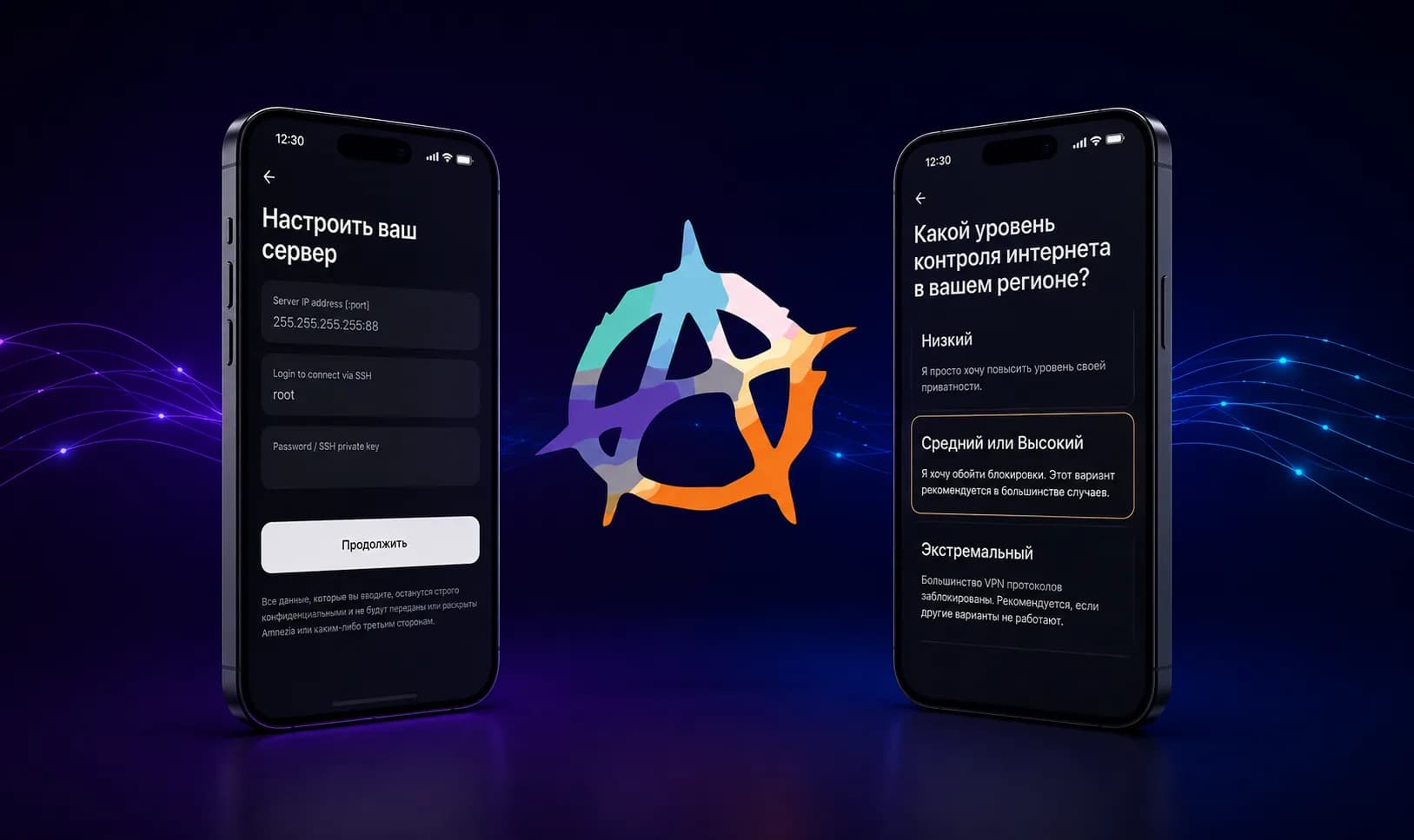
AmneziaWG is one of the most advanced VPN protocols available today, built on top of WireGuard. Its biggest advantage is resistance to DPI filtering while keeping connection speeds high. That makes AmneziaWG a great fit for networks with heavy access restrictions.
This guide walks you through setting up AmneziaWG on both iPhone (iOS) and Android.
What you'll need before you start
Before configuring anything, make sure you have:
- the AmneziaWG app installed;
- a
.confconfiguration file or a configuration archive; - a stable internet connection.
The configuration file contains all the parameters needed to connect to a VPN server. It's usually provided by your VPN provider, or generated after you set up your own server.
Setting up AmneziaWG on iPhone (iOS)
Step 1. Install the app
Install the AmneziaWG app from the App Store. The official client supports importing AmneziaWG configurations.
Step 2. Import your configuration
Open the app and tap "Import from File or Archive".
Then select the .conf configuration file or archive you saved earlier.
If you received the configuration via AirDrop, Telegram, Safari, or the Files app, you can open it directly in AmneziaWG.
Step 3. Allow the VPN configuration
On first launch, iOS will prompt you to add a VPN configuration.
Tap "Allow".
You may then be asked to enter your device passcode or confirm with Face ID.
Step 4. Connect
Once the import is complete, a new connection will appear.
Flip the switch to ON.
The connection will be established within a few seconds.
Setting up AmneziaWG on Android
Step 1. Install the app
Install the official AmneziaWG app from Google Play.
Step 2. Import your configuration
Launch the app.
Tap the "Import from File" button.
Select your .conf configuration file.
Once the import succeeds, the profile will automatically appear in your list of connections.
Step 3. Connect
Tap the switch next to the newly created profile.
Android will ask for permission to set up a VPN connection.
Confirm the prompt.
Your device will connect to the VPN within a few seconds.
How to check that it's working
Once you're connected, it's worth confirming the VPN is working correctly.
Check whether:
- your IP address has changed;
- the sites you need are loading;
- the VPN icon is showing in the system status bar;
- there are no connection errors.
If everything checks out, setup is complete.
Common issues
The configuration won't import
The most common causes are:
- a corrupted file;
- an unsupported file format;
- the file was edited manually.
Try downloading the configuration again.
VPN won't connect
Check the following:
- that you have an internet connection;
- that your device's date and time are correct;
- whether the server is being blocked;
- that you're using the latest version of the app.
Connected, but sites won't load
This is usually a DNS or routing issue.
Try:
- reconnecting;
- re-importing the configuration;
- refreshing the configuration file.
Why use AmneziaWG
Compared to standard WireGuard, AmneziaWG adds extra traffic obfuscation techniques, making the connection much harder to fingerprint with DPI tools. At the same time, it keeps the high speed, low latency, and low battery usage that WireGuard is known for.
Key advantages:
- high speed;
- fast connection setup;
- low battery consumption;
- resistance to blocking;
- simple setup process.
If your VPN provider gives you a ready-made configuration file, the whole setup usually takes no more than a minute or two.
Conclusion
Setting up AmneziaWG on iPhone and Android takes just a few minutes. All you need to do is install the official app, import your configuration file, and confirm the VPN connection. From there, your device will be running a secure, high-speed connection with strong resistance against modern VPN-blocking techniques.