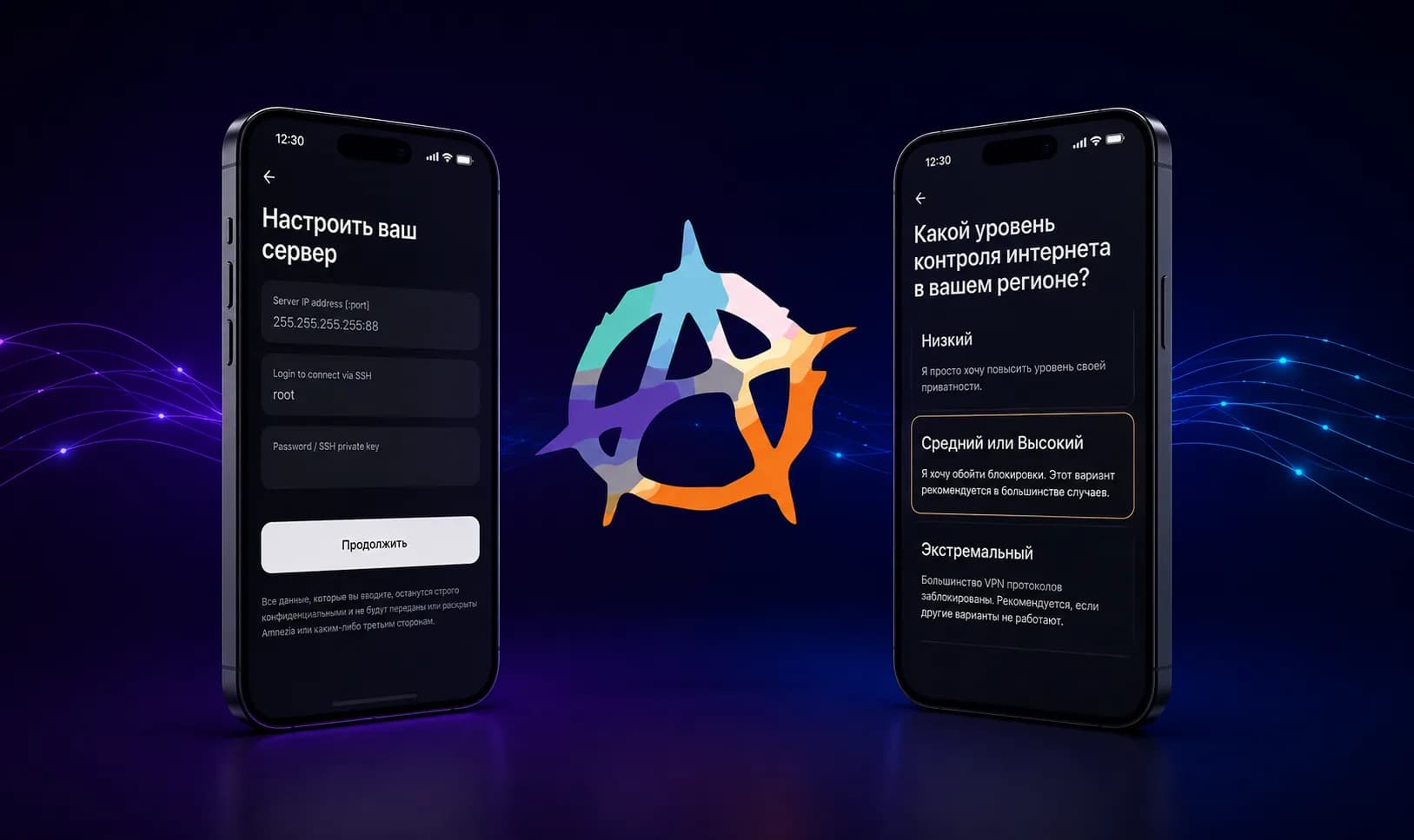

Happ is a client app built on the Xray core, used to connect to a VLESS + Reality subscription. On its own it connects to nothing: you add a single link issued by a VPN service, and the app pulls the location list and the connection parameters out of it.
This article is about the client itself — which devices it ships for, three ways to add a subscription, what to do when a link will not import, and how Happ differs from FlClashX and Hiddify. The step-by-step guide specific to RuSolv lives in the documentation; this piece is about the app in general, whoever's subscription you put in it.
What Happ is
Happ is a shell around the Xray core. The core handles the connection, the app handles the interface, subscription storage, and switching between locations. The practical consequence: there is nothing to configure by hand. Server, port, keys, obfuscation parameters — all of it arrives inside the subscription and the app parses it itself.
One subscription usually carries every location a service offers. Switching between Frankfurt and Helsinki is picking a row in a list, not setting anything up again.
A subscription link is the address the app periodically reloads the server list from: when the service adds a location, it turns up in Happ on its own, with no re-import. It is also an access key — anyone holding it connects on your subscription. Do not publish it.
Which devices Happ runs on
- iPhone, iPad — the App Store, two separate listings (see below)
- Android — Google Play or the APK
- Windows — happ.info, x64 and ARM64 builds
- macOS — the App Store or happ.info
- Linux — happ.info: deb, rpm, pkg.tar.zst
- Apple TV — a separate app, "Happ - Proxy Utility for TV"
Desktop builds live in the project's repository: as of 20 July 2026 that is version 3.3.6 — installers for Windows x64 and ARM64, a universal DMG for macOS, and a full set of Linux packages, deb, rpm, and pkg.tar.zst, for both x64 and ARM64. Short guides usually forget Linux exists here, but the packages are there. Apple TV is served by a separate app from the same developer, "Happ - Proxy Utility for TV", present in both the Russian and the global storefront; neither of the other two clients ships a TV version.
In the Russian App Store it goes by a different name
Here is the detail that makes people conclude the app is unavailable to them. The global Happ listing does not appear in the Russian storefront — but a separate Russian listing does, under a different name. Checked on 5 August 2026: itunes.apple.com/lookup on the global identifier with country=ru returns zero results, while the Russian identifier returns "Happ - Proxy Utility Plus", version 5.3.0, updated 30 July 2026. Both listings belong to the same developer, Flyfrog LLC, and both links sit on the project's own site, happ.info.
The practical consequence: you do not need an Apple ID from another region — on iPhone and iPad you install the Russian listing, and everywhere else there was never a restriction to begin with.
Do not go looking for it by searching for "Happ": the Russian storefront is full of third-party apps with similar names — "Happ VPN ++", "Happ plus" and the like — and the official one also has "Plus" in its name, so the name alone will not tell them apart. Open the link from happ.info and check the developer: Flyfrog LLC. The older Russian listing, still cited in guides from 2025, has been removed and now opens on an error.
Step 1. Install the app
Take the build for your platform from the list above. On Android you can install either from Google Play or from the APK; on desktop systems the installer comes from the project site.
Watch the domain: happ.su now redirects to happ.info — the project changed addresses. Both links land in the same place, but the current one is the second.
Step 2. Add the subscription
There are three ways, and they all produce the same result — pick whichever is convenient.
Option 1. One-tap import
Happ registers a URL scheme of its own, of the form happ://add/.... When a service shows an "Open in Happ" button, that button opens exactly such a link: the app picks the subscription up and adds it without a single input field. On a phone this is the shortest path.
Option 2. Import by link
Copy the subscription link from the service's dashboard, open Happ, tap "+", and choose import by link. Paste the address and confirm. A second later every location shows up in the list.
Option 3. QR code
The same address, rendered as a picture. In Happ tap "+", choose scanning, and point the camera at the QR code on your computer screen. Handy when the subscription is open on a desktop and the device you want to connect is a phone.
The QR code and the link carry identical content. If what is inside is an ordinary address beginning with https://, that same QR code will be read by any client with scanning support. A QR code containing a happ:// link, on the other hand, is understood only by Happ.
Step 3. Connect and verify
Pick a location from the list and press the connect button. On first launch the system asks permission to create a VPN profile — on iOS that is a passcode or Face ID confirmation, on Android a separate system dialog.
Then it is worth confirming the connection actually works rather than merely showing a green indicator:
- has the external IP address changed;
- do the sites you need open;
- is the VPN icon visible in the status bar;
- has latency stayed within reason.
Split tunnelling in Happ
One detail trips people up more than any other. Routing rules in Happ live inside a specific location entry, not in the subscription as a whole. So a service that wants Russian sites to bypass the tunnel has to hand you two entries for one location: the ordinary one, and a second marked "(Whitelist)".
That is exactly how it works with RuSolv: the ordinary location entry carries all traffic into the tunnel, while the entry marked "(Whitelist)" carries rules that leave Russian resources on the direct connection — on the locations that support it. Do not read that label as a "whitelist of sites" in the usual sense: it means the exact opposite — a list of what goes around the tunnel. Those entries sit at the top of the list, above the ordinary duplicates of the same location. If you want that split, those are the rows to pick. The client where the rules apply to the whole profile at once is FlClashX.
Common problems
The link will not import
The most frequent cause is a link in the old format. Some services hand out an address of the form happ://crypt5/...: that is Happ's own encrypted format, and it changed shape in the summer of 2026. Happ builds released before that change cannot decrypt the newer links — the app reports a format error and never even reaches the server. Two actions fix it: update the app, and re-issue the subscription link.
Second point: only Happ understands those links. Neither FlClashX nor Hiddify will open them — they need an ordinary https://... address.
The subscription was added but the location list is empty
That means the server returned an empty response. Usually it means the subscription has expired, the plan has run out, or there are temporarily no available nodes in the chosen region. Check the subscription's state in your dashboard.
The locations look out of date
Refresh the subscription inside the app. Happ reloads it on its own schedule, but a manual refresh works immediately.
The old link stopped working
If you re-issued the subscription link, the previous one stops working at once. Import the new one and delete the old profile, or the app will keep hitting a dead address.
Happ, FlClashX, or Hiddify
Briefly, on the merits:
- Happ is the only one of the three present in the Russian App Store, plus an Apple TV version and one-tap import. The downside is that split tunnelling means picking a separate location entry.
- FlClashX applies routing rules to the whole profile at once, with no separate entry to pick. The downside is that there is no iOS build, neither in its releases nor in the App Store.
- Hiddify runs on every platform but is missing from the Russian App Store; it also discards the routing rules from the subscription and picks the server itself.
An ordinary subscription link — the kind beginning with https:// — works in all three: the server identifies the client from the User-Agent header and returns the configuration in a suitable format. Install whichever you like and change your mind later.
Where to get a subscription
Happ works with a subscription from any service that issues a link in a supported format. With RuSolv that is one link covering every location; it is the same link that opens in Happ with one tap and the same one the other two clients accept, and the free tier covers one VLESS device with 10 GB of traffic a month. The step-by-step version of this guide for RuSolv is in the documentation.
Bottom line
Happ takes about a minute to set up: install the app, paste the subscription link, pick a location. There are exactly two things worth knowing about it — in the Russian App Store it sits as a separate listing called "Happ - Proxy Utility Plus", and split tunnelling is switched on by picking a separate location entry rather than a checkbox in the settings. Everything else the app does for you.