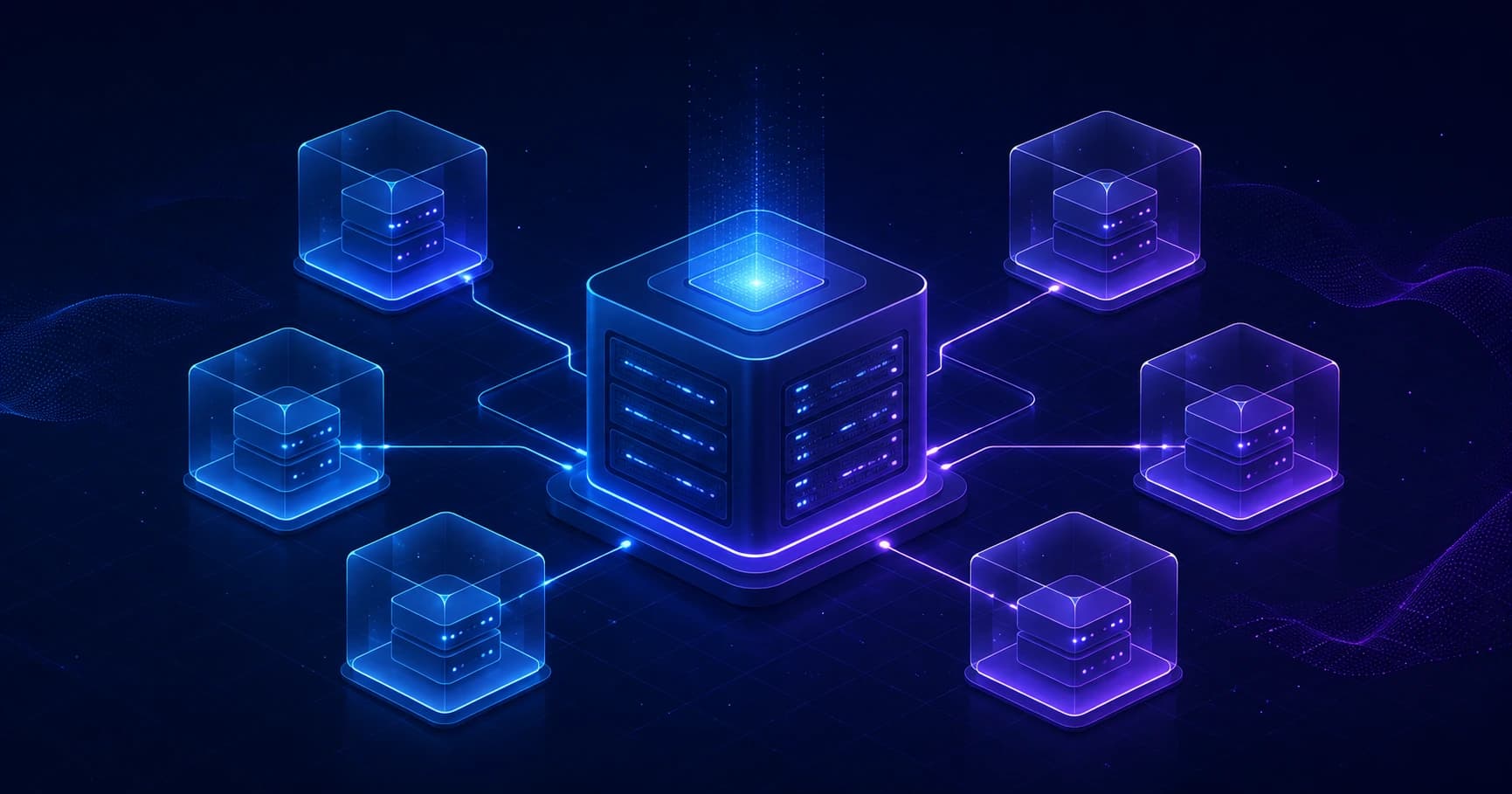

When you rent a VPS, you'll often spot the word KVM in the plan description. It usually means the virtual server was built with full hardware virtualization: it has its own operating system, virtual processors, memory, disk, and network.
KVM is one of the most widely used technologies for Linux servers. It runs virtual machines with Ubuntu, Debian, Windows Server, and other operating systems, and it hosts websites, databases, VPNs, bots, and corporate services.
Let's break down exactly what KVM does, how it's built, and why the type of virtualization matters when you're choosing a VPS.
What is KVM
KVM stands for Kernel-based Virtual Machine — a virtual machine built on the Linux kernel.
It's a technology that turns a Linux server into a hypervisor: a system that can run several isolated virtual machines at the same time. Each virtual machine behaves almost like a separate computer, with its own OS and settings.
A single physical server can run several VPS instances. Each one gets its own set of virtual resources:
- virtual CPU cores — vCPUs;
- memory (RAM);
- a virtual disk;
- a network interface and IP address;
- its own operating system and OS kernel.
For example, a single physical server can be split into several KVM virtual machines: one serves a website, another stores a database, a third runs a VPN, and a fourth is used for testing. These machines can't see each other's files or processes.
In the context of a VPS, KVM means Kernel-based Virtual Machine. Don't confuse it with a KVM switch — a physical device for controlling several computers through a single keyboard, monitor, and mouse. They're completely different technologies that happen to share an acronym.
How KVM works
KVM taps into the hardware virtualization features built into modern processors: Intel VT-x on Intel chips and AMD-V on AMD ones. They let the guest operating system safely run most of its instructions directly on the physical processor, instead of emulating them entirely in software.
Here's a simplified picture:
Physical server
        ↓
Linux + KVM module
        ↓
QEMU / libvirt / control panel
        ↓
Several separate virtual machines
        ↓
Each customer's OS, apps, and data
In this stack, each component has its own job:
- Linux manages the server's real hardware;
- KVM extends the kernel with the ability to run virtual machines;
- QEMU creates the virtual hardware: disk, network card, BIOS/UEFI, controllers, and other devices;
- libvirt and provider control panels help create, start, stop, and configure virtual machines;
- the guest OS is the Linux or Windows running inside a particular VPS.
KVM handles running the virtual machine, while QEMU usually complements it by emulating devices. Together, they let the guest system treat the virtual server like an ordinary computer.
What happens inside a virtual machine
CPU
A virtual machine is assigned one or more vCPUs. When the guest OS runs ordinary instructions, the processor can execute them in a special guest mode. When a privileged operation is needed — like accessing hardware or changing critical processor settings — control is handed back to the hypervisor.
This gives the guest system enough freedom to do its work, while preventing it from directly controlling the physical server or interfering with neighboring VPS instances.
Memory (RAM)
Each virtual machine is allocated an amount of RAM — say, 2, 4, or 8 GB. The guest OS treats this memory as its own, even though it's actually managed by the hypervisor on the physical server.
Modern processors use second-level address translation — EPT on Intel and NPT on AMD. These map the guest system's memory to the host's real memory more quickly and cut down on virtualization overhead.
Storage
Inside the VPS, you see an ordinary disk: /dev/vda, /dev/sda, or the C: drive on Windows. On the host, that might be a separate volume, a storage partition, or a virtual machine image file.
Speed depends not just on disk size, but on the type of drives, the load on the storage, I/O settings, and the provider's policies. That's why KVM alone doesn't guarantee the same performance across every plan.
Network
KVM creates a virtual network interface for the virtual machine. It connects to the physical network through a bridge, routing, or another networking setup configured by the provider.
To the guest OS, it looks just like a regular network card. You can configure a firewall, VPN, web server, DNS, and other network services exactly as you would on a standalone computer.
Why KVM is used for VPS
KVM's main advantage is full virtualization. Every machine runs its own OS kernel and gets an isolated environment.
That opens up several important capabilities:
- installing almost any supported OS;
- rebooting the VPS without affecting neighboring machines;
- changing kernel and network settings within the access your provider grants;
- running Docker, databases, web servers, and most server applications;
- running Linux and Windows as separate guest systems;
- accessing the virtual machine's console, if the provider offers one.
That's exactly why KVM is a popular choice for general-purpose VPS instances — from a small Telegram bot to a database-backed application or a personal VPN.
If a plan description lists KVM, that's a good baseline sign of a full-fledged virtual machine. But before you buy, still check the CPU, RAM, disk type, traffic, location, and whether backups are included: the type of virtualization is no substitute for a plan's actual specs.
KVM vs. containers: what's the difference
KVM is often compared to container-based virtualization — LXC or OpenVZ, for example. The key difference is that KVM runs a full virtual machine with its own kernel, while containers share the host system's kernel.
| Aspect | KVM | Container virtualization |
|---|---|---|
| Type of virtualization | Full, hardware-based | OS-level |
| Own OS kernel | Yes | No — uses the host's kernel |
| Can install a different OS | Yes, within the supported architecture | Limited |
| Isolation | High | Depends on the platform and configuration |
| Windows as a guest OS | Usually possible | Usually not |
| Overhead | Higher than a container | Lower |
| Good for general-purpose VPS | Yes | Sometimes, for lightweight Linux workloads |
Containers start faster and can use resources more efficiently. But KVM offers more independence: you don't share the host's kernel with your neighbors, and you usually run into fewer restrictions at the OS level.
KVM, VPS, and VDS: what these terms mean
VPS and VDS are names for the service — the virtual server a customer rents. KVM is one of the technologies used to build that server.
So the phrase "KVM VPS" usually means you're renting a VPS built with KVM virtualization.
It's important not to read too much into the word KVM alone:
- KVM doesn't mean the entire physical server is dedicated to you;
- KVM doesn't guarantee that the provider isn't overselling resources;
- KVM doesn't automatically make a server fast — the CPU, disk, network, and your neighbors' load all matter;
- KVM doesn't remove the need to update the OS, configure a firewall, and make backups.
The virtualization technology defines the isolation model, but service quality also depends on the provider's infrastructure.
Which operating systems you can run on KVM
KVM typically runs popular server operating systems:
- Ubuntu, Debian, AlmaLinux, Rocky Linux;
- Fedora, Arch Linux, and other Linux distributions;
- Windows Server — provided you have a license and your provider supports it;
- specialized systems for routing, firewalls, or lab environments.
Most VPS providers offer ready-made OS images in the control panel. Sometimes you can even upload your own ISO image through the virtual console.
If you need a non-standard system or custom kernel settings, KVM is usually more convenient than a container-based plan.
Performance: how close KVM gets to a physical server
KVM uses hardware virtualization, so the guest system doesn't have to emulate the entire processor in software. For typical server workloads, performance can come close to a physical server with comparable resources.
But the final speed depends on a lot of factors:
- the generation and current load of the physical processor;
- whether the vCPUs are dedicated entirely to you or shared with other VPS instances;
- the speed and type of storage — SSD or NVMe;
- the virtual disk configuration and network drivers;
- network load and the plan's limits;
- the applications running inside the server.
For good network and disk performance, KVM often relies on virtio drivers. They're built specifically for virtual machines and usually work more efficiently than fully emulated devices.
KVM isolates virtual machines well, but it doesn't make resources physically "invisible" to your neighbors. For instance, heavy load on shared storage or the network can affect your speed if the provider doesn't guarantee dedicated IOPS or bandwidth.
Can you run Docker inside a KVM VPS
Yes. Docker runs inside a Linux guest and, for typical use, doesn't require nested virtualization. That's why the KVM VPS + Docker combination is so common: you can deploy several containerized services on a single server.
For example:
KVM VPS
 ├── Nginx or Caddy
 ├── application / API
 ├── PostgreSQL or MySQL
 ├── Redis
 └── Telegram bot or background jobs
Nested virtualization is only needed in a different scenario: when you want to run full virtual machines inside your VPS — using KVM, VirtualBox, or Hyper-V within the virtual machine, for example. Whether that's possible depends on the provider's configuration and policies.
How to tell whether a VPS runs on KVM
The provider usually states the virtualization type outright in the plan details or documentation. Inside the control panel and the Linux guest you can find signs of the virtual environment, but the exact commands and results depend on the OS and host configuration.
On Linux, you can start with this command:
systemd-detect-virtIt often returns the virtualization type, such as kvm. For more detailed diagnostics, people use lscpu, dmesg, virt-what, and the information in the provider's panel.
But the most reliable source is the plan description and the hosting provider's support team: some providers use several technologies across different locations or service tiers.
How to choose a KVM VPS
When picking a KVM server, don't focus on price and gigabytes alone. Check the following.
CPU and RAM
For a small website, a bot, or a test project, 1–2 vCPUs and 1–2 GB of RAM are often enough. For a database, several containers, or a control panel, it's wiser to start with 2–4 GB of RAM.
Storage and IOPS
SSD is fine for most workloads, while NVMe is usually faster when you're working heavily with databases, caches, and lots of small files. Ask not only about capacity, but also about any I/O operation limits, if they're specified.
Network and traffic
Check the port speed, traffic limits, IPv4/IPv6 availability, and the data center's location. For VPNs, proxies, downloads, and media services, these details matter especially.
Backups and snapshots
A snapshot is handy before an update or an experiment, but it's no replacement for a proper backup. Important data should be kept in a separate location, and you should verify that your backups actually restore.
Console access
VNC, an HTML5 console, or a similar tool will help you recover the server if you accidentally lock yourself out of SSH, misconfigure the network, or botch a system update.
Basic security for a KVM VPS
Once you're given access to the server, start by updating the OS, setting up access, and shutting down any services you don't need.
On Ubuntu or Debian, the basic steps might look like this:
apt update && apt upgrade -yAfter that, it's worth:
- creating a separate user instead of always working as
root; - using SSH keys and disabling password login once the keys are confirmed working;
- enabling a firewall and allowing only the ports you need;
- regularly updating the OS and installed applications;
- setting up backups;
- keeping an eye on CPU, RAM, and disk usage.
KVM provides isolation between virtual machines, but it won't protect your server from a weak password, an exposed SSH port, a vulnerable application, or accidentally deleting your data. VPS security starts with how you configure it and keep it updated.
Frequently asked questions
Is KVM better than OpenVZ?
For a general-purpose VPS, KVM is usually more convenient: it has its own kernel, fewer restrictions, and greater independence for the guest OS. OpenVZ or LXC can be a good choice for lightweight Linux workloads when saving resources matters, but they don't replace a full virtual machine in every scenario.
Can you set up your own VPN on a KVM VPS?
Yes, as long as your provider's rules allow it and you know how to administer a server. You'll need to install your chosen VPN protocol and set up a firewall, access keys, updates, and backups. For personal use, a ready-made VPN service is often simpler, since it doesn't require managing the OS yourself.
Do you need nested virtualization for Docker?
No. Docker uses containerization inside the Linux guest and usually runs on a KVM VPS without nested virtualization.
Why might a KVM VPS feel slow?
KVM isn't always the culprit. Check your CPU and RAM load, free disk space, I/O speed, system logs, network route, and plan limits. Heavy load on the physical host from other customers is also a possibility.
Bottom line
KVM is a Linux virtualization technology that makes it possible to run isolated virtual machines, each with its own OS, virtual hardware, and settings. That's exactly why KVM is so widely used for VPS and VDS offerings.
For the user, a KVM VPS means more flexibility than a container-based plan: you can install the OS and software you need, configure the network, and run Docker, databases, websites, bots, and VPNs. But the type of virtualization is only part of the decision. Factor in the actual resources, storage quality, network, backups, and provider support.